Garden beds are the physical spaces where your crops grow. In CropsBook™, each bed is a named location you can attach dimensions, soil data, crops, and input logs to. Tracking beds lets you understand which parts of your farm are most productive and what each area needs.
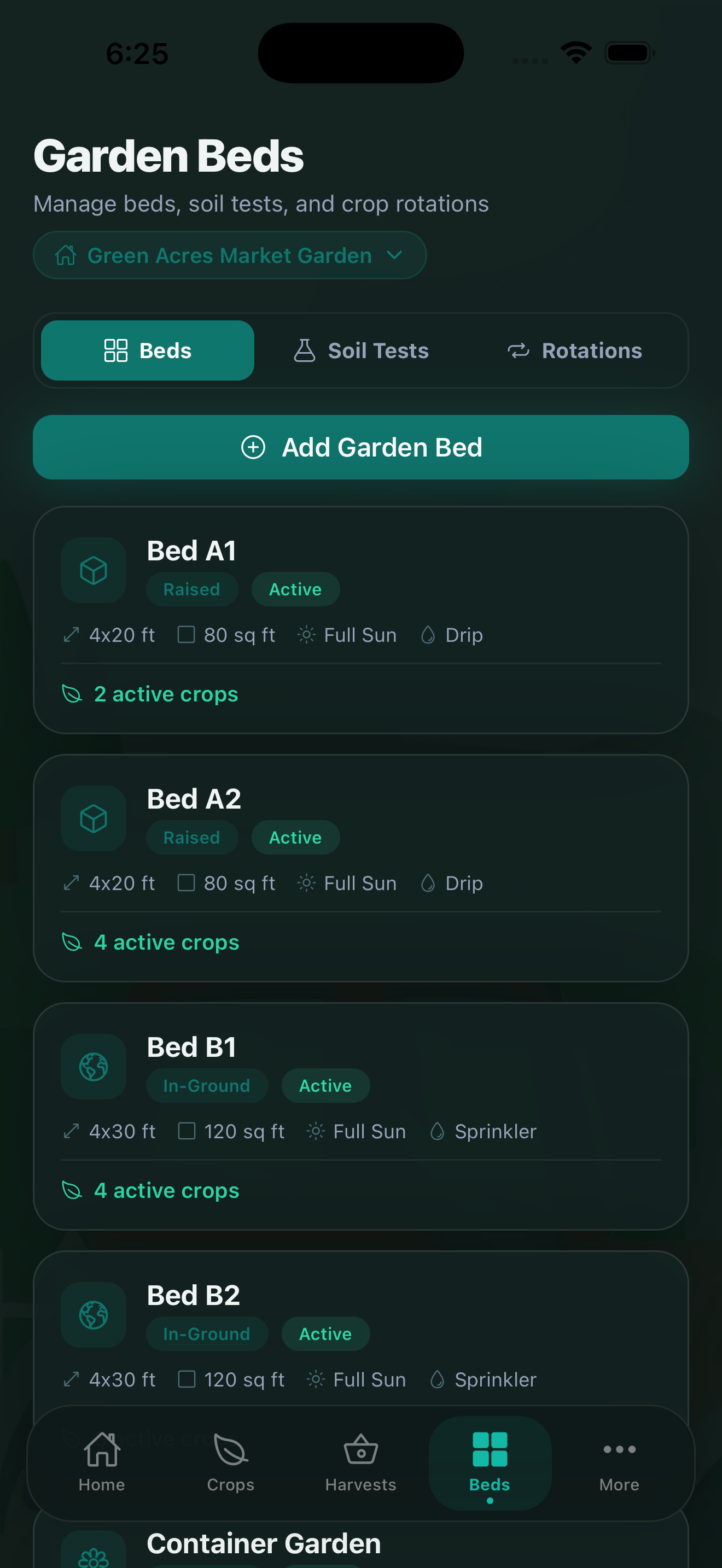
Creating a Garden Bed
Tap the Beds tab at the bottom of the screen and tap + to add a new bed. You can record:
- Bed name — a descriptive name like "Hoop House Row 1" or "South Field Block A".
- Dimensions — width and length to calculate total square footage.
- Soil type — loam, clay, sandy loam, raised bed mix, or custom.
- Sun exposure — full sun, partial shade, or full shade.
The free plan supports up to 5 garden beds. Upgrade to Pro for unlimited beds.
Name your beds in a way that makes sense for your layout. Consistent naming helps when reviewing crop rotation history and yield heat maps.
Assigning Crops to Beds
When you add or edit a crop, you can assign it to a specific bed. CropsBook tracks which crops are currently in each bed and shows the history of what has been planted there across seasons — essential for crop rotation planning.
Soil Tests
Go to More → Farm Management → Soil Tests to log the results of laboratory or home soil tests for any bed. You can record:
- pH level
- Nitrogen, phosphorus, and potassium (NPK) levels
- Organic matter percentage
- Micronutrient levels
- Test date and lab source
- Notes and recommendations
Having a historical record of soil test results lets you track how your soil health changes over time and whether your amendments are working.
Soil Amendments
The Soil Amendments feature uses AI to analyze your soil test results and suggest specific amendments — such as lime for low pH, compost for low organic matter, or specific fertilizers for nutrient deficiencies. PREMIUM
Recommendations are generated on-device based on your actual soil test data and the crops assigned to that bed. Nothing is sent to a cloud server.
Input Tracking
Track every input applied to each bed — seeds planted, fertilizers applied, pesticides or organic sprays used, compost added, and irrigation amounts. PRO
Go to More → Farm Management → Input Tracking to log applications by:
- Input type (seed, fertilizer, pesticide, amendment, water)
- Product name and source
- Application date and rate
- Bed or crop applied to
Input logs are useful for organic certification record-keeping and for understanding the true cost of producing each crop.
If you're pursuing organic certification, Input Tracking is essential. Every material you apply needs to be documented with the product name, rate, and date. CropsBook keeps this record for you automatically.
Yield Heat Map
Once you have harvest data logged for multiple beds, the Yield Heat Map in More → Analytics & Reports shows each bed color-coded by productivity. This makes it immediately obvious which beds are your highest performers and which need attention. PRO
CropsBook™ is Available on the App Store
CropsBook™ is available on the App Store for iPhone, iPad, and Mac.
Download on the App Store