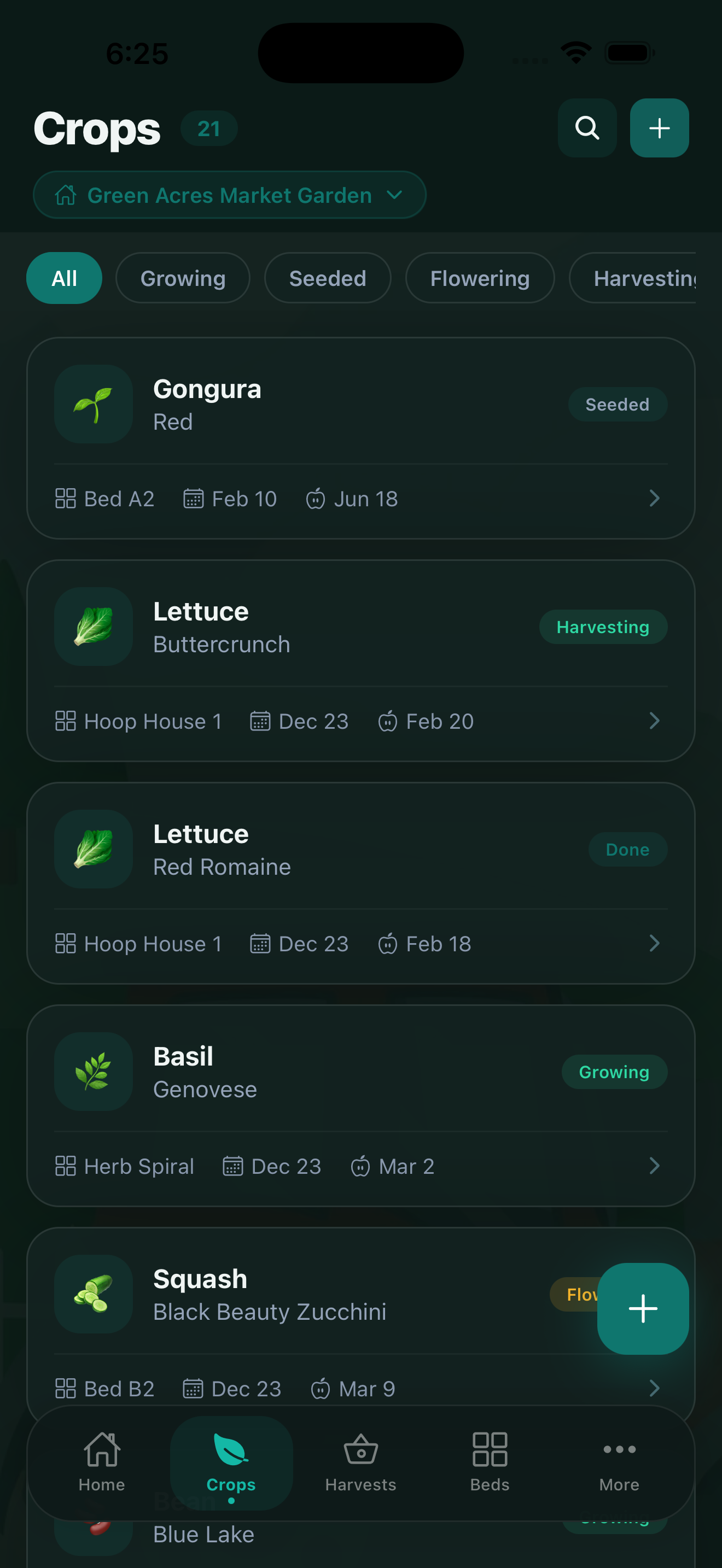
The Crops tab is the heart of CropsBook™. This is where you track every plant on your farm — from the moment you record a planting date to the final harvest. Here's how to get the most out of it.
Adding a Crop
Tap the + button on the Crops tab to add a new crop. You can record:
- Crop name and variety — for example, "Tomato" with variety "Cherokee Purple".
- Planting date — when seeds were sown or transplants went in the ground.
- Expected harvest date — CropsBook can calculate this from days-to-maturity data.
- Garden bed assignment — link the crop to a specific bed so you can track bed utilization.
- Growth stage — manually update as the plant progresses (seedling, vegetative, flowering, fruiting, harvest-ready).
- Photos — attach photos to document crop health over time.
The free plan supports up to 15 crops. Upgrade to Pro for unlimited crops.
Tracking Growth Progress
Each crop has a detail screen where you can see its full timeline. You can update the growth stage as the season progresses and add notes about what you observe. Photos attached to a crop form a visual timeline you can scroll through.
The Growth Tracker feature (available separately in the More menu) creates an AI-enhanced photo timeline with growth milestones for each crop.
Take a photo at the same time each week. After a few weeks you'll have a clear visual record of how quickly each variety matures.
Health Records
Go to More → Farm Management → Health Records to log pest sightings, disease observations, and treatments for any crop. This keeps a searchable history of what happened to each crop and what interventions you applied.
Crop Rotation Planning
CropsBook tracks which crop family was grown in each bed across seasons, making rotation planning straightforward. Go to More → Farm Management → Crop Rotation to:
- View the crop family history for each garden bed by year.
- See rotation recommendations to prevent disease buildup and maintain soil health.
- Plan which crop family goes in each bed for the upcoming season.
Companion Planting
The Companion Planting guide (More → Farm Management → Companion Planting) shows you which crops grow well together and which to keep apart. Use this when planning your bed layout to:
- Maximize yields through beneficial plant relationships.
- Deter pests naturally using companion plant combinations.
- Avoid antagonist pairs that stunt each other's growth.
Seed Saving and Lineage
If you save seeds from your own harvest, go to More → Farm Management → Seed Saving to record:
- The parent crop and variety the seeds came from.
- Harvest date and quantity of seeds saved.
- Germination rates from test batches.
- Generation number for open-pollinated varieties you're selecting over time.
This connects back to your Seed Inventory so you always know where your seeds came from. Learn more in the Seed Inventory guide.
Tip: Link saved seeds back to the specific garden bed they came from. Over seasons, you'll have a complete provenance record for every variety you've developed.
CropsBook™ is Available on the App Store
CropsBook™ is available on the App Store for iPhone, iPad, and Mac.
Download on the App Store