CropsBook™ is an all-in-one crop management app for growers and market farmers. Everything runs on your device — no internet required, no data uploaded. This guide walks you through your first steps: setting up your profile, exploring the dashboard, and learning to navigate the app.
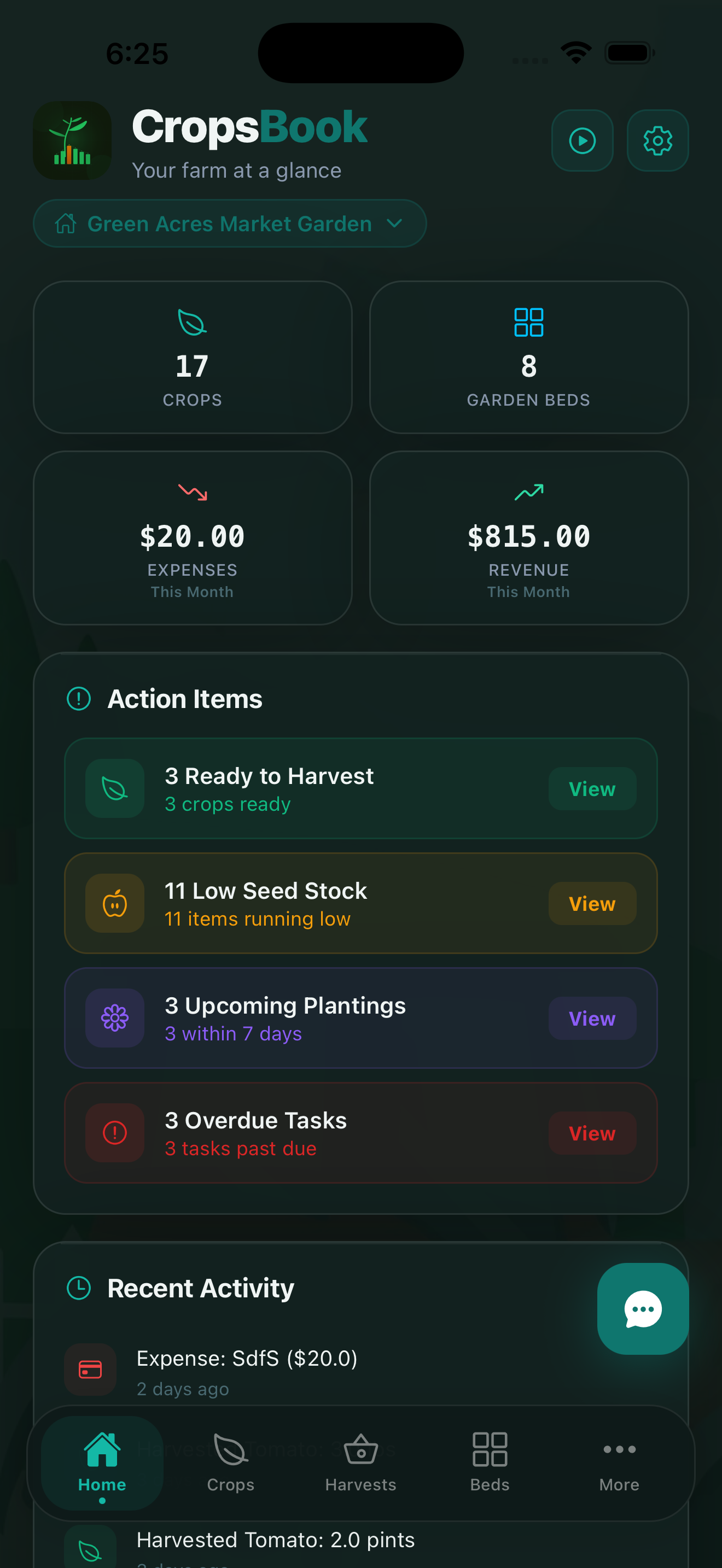
The Dashboard
The Dashboard is your home screen. It shows a snapshot of your farm at a glance: your crop overview, recent activity, financial summary, live weather, and any upcoming tasks or planting reminders. Every number on the dashboard links to the detailed screen for that feature.
The dashboard also gives you quick access to your farm calendar — tap any date to see everything scheduled for that day, from planting to spray applications to harvest windows.
Setting Up Your Profile
Tap the More tab at the bottom of the screen, then tap your name or initials at the top of the screen to open your profile. From here you can set your name, farm name, and business name. These appear throughout the app and on any reports you generate.
Your profile information stays on your device. CropsBook never uploads personal data to any server.
The Six Tabs
CropsBook's main navigation is a tab bar at the bottom of the screen. The six tabs cover your core daily workflow:
- Dashboard — Farm overview, weather, upcoming tasks, and financial snapshot.
- Crops — Add and manage all your crops, track growth stages, and assign crops to beds.
- Beds — Create garden beds with dimensions, soil type, and sun exposure.
- Harvests — Log yields by crop and track harvest analytics over time.
- Expenses — Record every farm expense with category and receipt photo.
- More — Access every other feature: AI tools, farm management, sales, operations, analytics, settings, and more.
You can customize which features appear in your tab bar. Go to Settings → Customize Tab Bar to swap in the screens you use most.
The More Menu
The More tab is your gateway to the full feature set. It's organized into hubs:
- AI Tools Hub PREMIUM — Farm assistant, AI camera, yield predictions, pest alerts, and 10+ more AI features.
- Farm Management Hub — Planting calendar, seed inventory, health records, crop rotation, companion planting, soil tests, and certifications.
- Sales & CSA Hub — Farm stand POS, CSA member management, and distribution planning.
- Operations Hub — Expenses, revenue, equipment, vendors & suppliers, and tasks.
- Analytics & Reports Hub — Yield analytics, profit forecast, season comparison, tax reports, and exports.
Use the search bar at the top of the More screen to quickly find any feature by name or description.
Multi-Farm Support
If you manage more than one farm or growing location, CropsBook supports multiple farms (called Ranches) from a single app. PRO
Each ranch has its own crops, garden beds, harvests, and finances. Switch between farms using the Ranch Switcher at the top of the More screen. You can add a new farm by going to More → Ranches.
Free vs. Pro vs. Premium
CropsBook is free to start with generous limits. Here's a quick overview of what each plan includes:
- Free — Up to 15 crops, 5 garden beds, 3 equipment, 50 expenses/month, 1 farm. Core features included.
- Pro ($9.99/mo) — Unlimited crops, beds, equipment, and expenses. Multiple farms, certifications, exports, Schedule F tax tools, analytics, and more.
- Premium ($19.99/mo) — Everything in Pro plus 14+ AI features and team collaboration.
All plans include a 14-day free trial. Download CropsBook on the App Store to get started.
Next Steps
Once you're comfortable with the basics, explore these guides to get more out of CropsBook:
- Managing Your Crops — Add varieties, track growth stages, and plan rotations.
- Garden Beds — Create beds and track soil health.
- AI Tools Hub — Let AI analyze your farm every morning.
CropsBook™ is Available on the App Store
CropsBook™ is available on the App Store for iPhone, iPad, and Mac.
Download on the App Store